
How to use Norman Rockwell Museum Audio Tour

There are three ways to access the audio tour content:
If you experience any problems using the audio tour after referring to the instructions below, please contact learn@nrm.org.
Browse the Audio Tour List
1. Press on Tour List in the menu.
2. At the top of the tour list are filter options. You can filter by language and content type. Press on the options, if applicable to filter the Tour List.
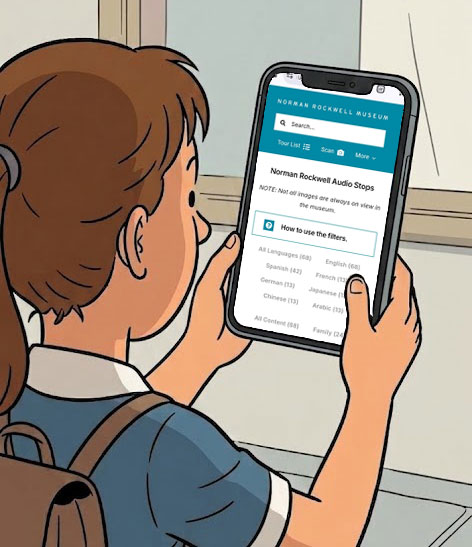
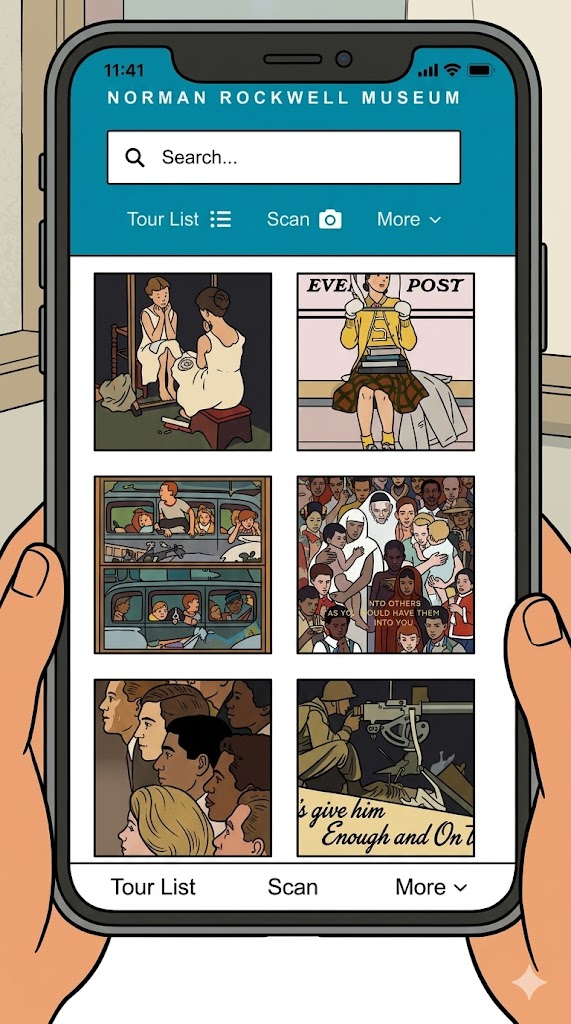
3. Browse through the images in the list and press an image to access its audio tour content.
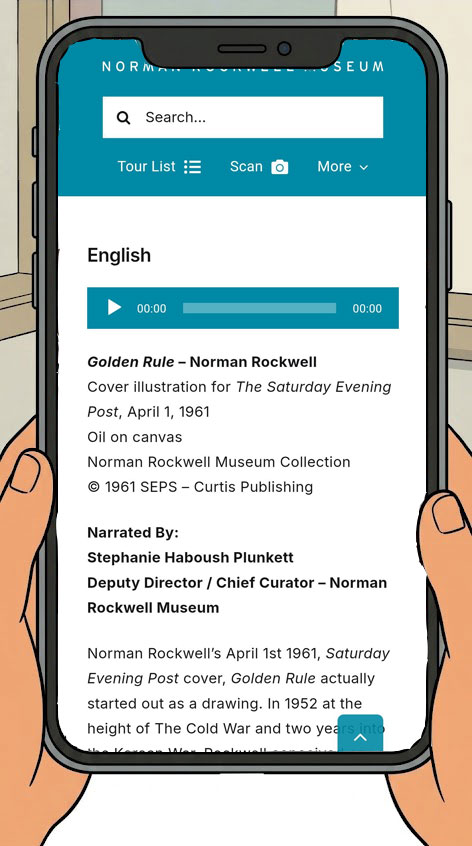
4. This is what an audio tour stop will look like. Scroll down to access more information and content.
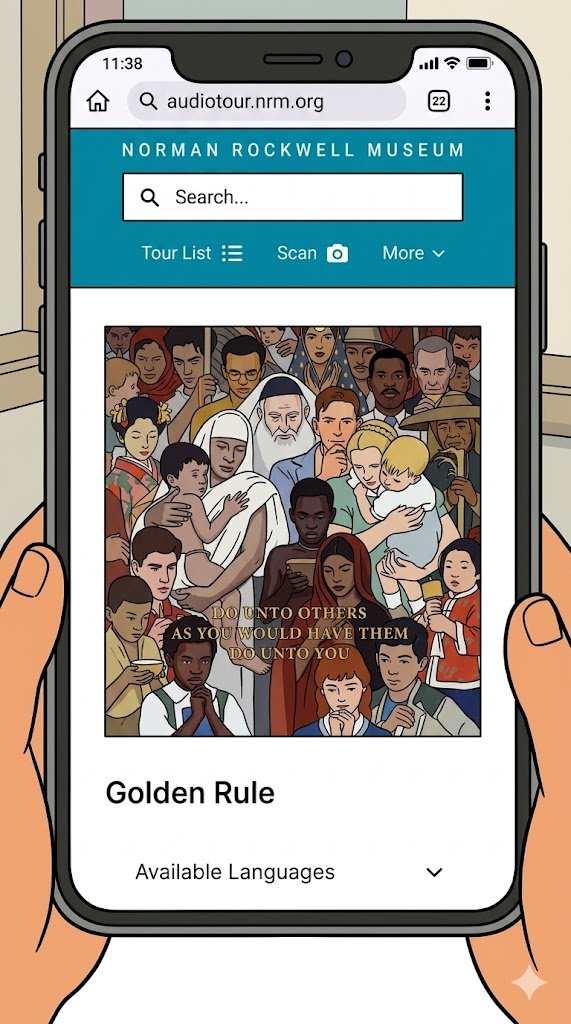
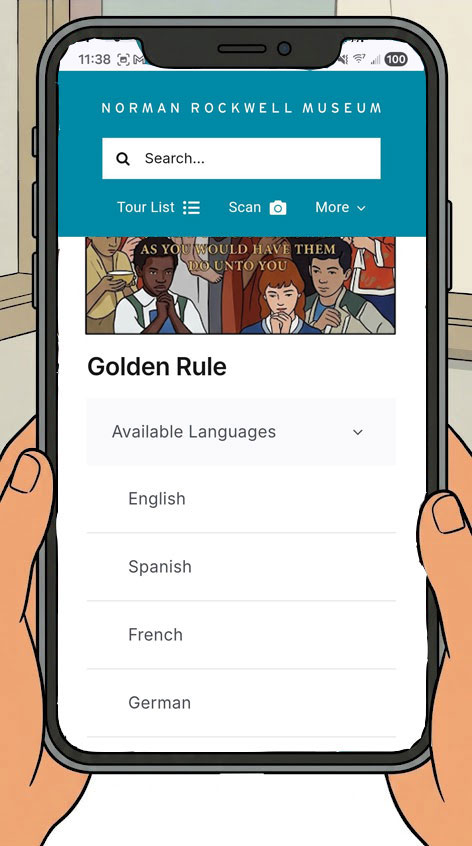
5. To choose another language other than english, if available, press on Available Languages to view and select a language.
6. Press on the PLAY  icon to play the audio tour content for that image.
Search by Image Title
1. Enter the title of an image in the SEARCH BAR. You only need to type the first 4 letters of the title to begin the search.
2. Select the image from the search results.
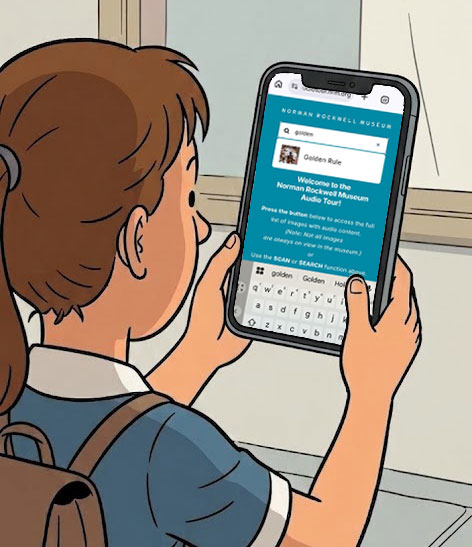
3. This is what an audio tour stop will look like. Scroll down to access more information and content.
4. To choose another language other than english, if available, press on Available Languages to view and select a language.
5. Press on the PLAY icon to play the audio tour content for that image.
Scan a QR Code
1. Press on the SCAN option in the navigation.
2. In order to use your camera to scan a QR code, you need to grant permission for the audio tour to use your camera.
3. Once your camera is activated, make sure you choose the camera that is “facing back”
4. Center the QR Code located on an image’s wall label within the square marker in the camera.
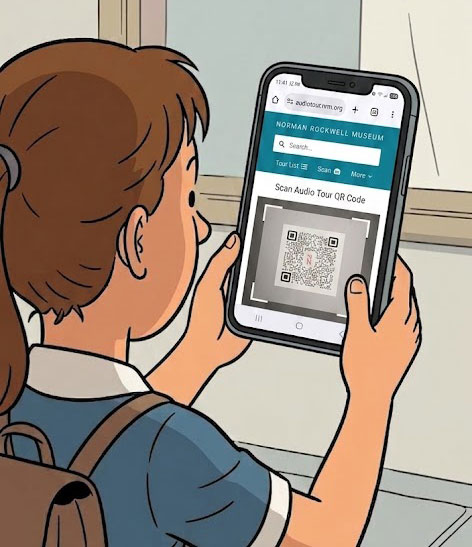
5. Once the camera has identified the QR code, you will be prompted to access the audio stop.
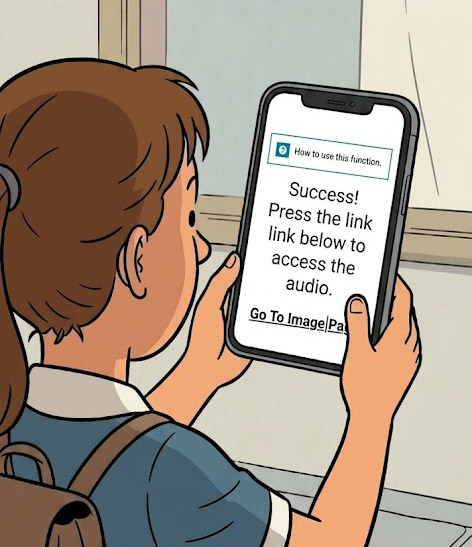
6. This is what an audio tour stop will look like. Scroll down to access more information and content.
7. To choose another language other than english, if available, press on Available Languages to view and select a language.
8. Press on the PLAY icon to play the audio tour content for that image.